> ## Documentation Index
> Fetch the complete documentation index at: https://fillout.com/help/llms.txt
> Use this file to discover all available pages before exploring further.
# Create collaborative forms
> Learn how to create collaborative forms with our app builder, Zite, and let multiple team members edit the same form together.
export const SupportBanner = () => {
const titleId = React.useId();
return ;
};
## What are collaborative forms?
Collaborative forms let multiple people edit the same form. Team members can make changes to a form at the same time instead of each person creating their own version. These are useful when you need input from multiple people, such as when creating a survey, registration form, application form, or internal company form.
Collaborative form editing is not currently available natively in Fillout, but you can create collaborative forms with our app builder, [Zite](https://www.zite.com). Fillout users automatically get a [free Zite plan with a set number of credits](https://www.fillout.com/help/billing-and-payments#manage-your-subscription-plan) (which you can increase by upgrading your plan).
## How collaborative forms work
Collaborative forms work by giving multiple people access to the same form, allowing them to make and review changes together. Fillout doesn't currently offer collaborative form editing as a native feature. However, you can use Zite, our AI app builder, to easily create a collaborative form where you can invite team members and assign permissions.
For example, you can create a job application form in Zite and invite members of your hiring team to work on it together. Multiple team members can add or edit application questions, review the form, and update its settings, with everyone working on the same form.
### Common use cases
* **Job Applications**: Recruiters and managers create and update questions, and review applications together
* **Marketing Campaigns**: Copywriters, designers, and other members update different parts of a campaign, such as copy, visuals, and details
* **Customer Surveys**: Marketing and product teams create, review, and update survey questions together
* **Event Registration**: Event teams manage registration fields, attendee information, and event details in one shared form
* **Data Collection**: Teams work together to create and update forms, with each member managing relevant fields or sections
## How to create a collaborative form
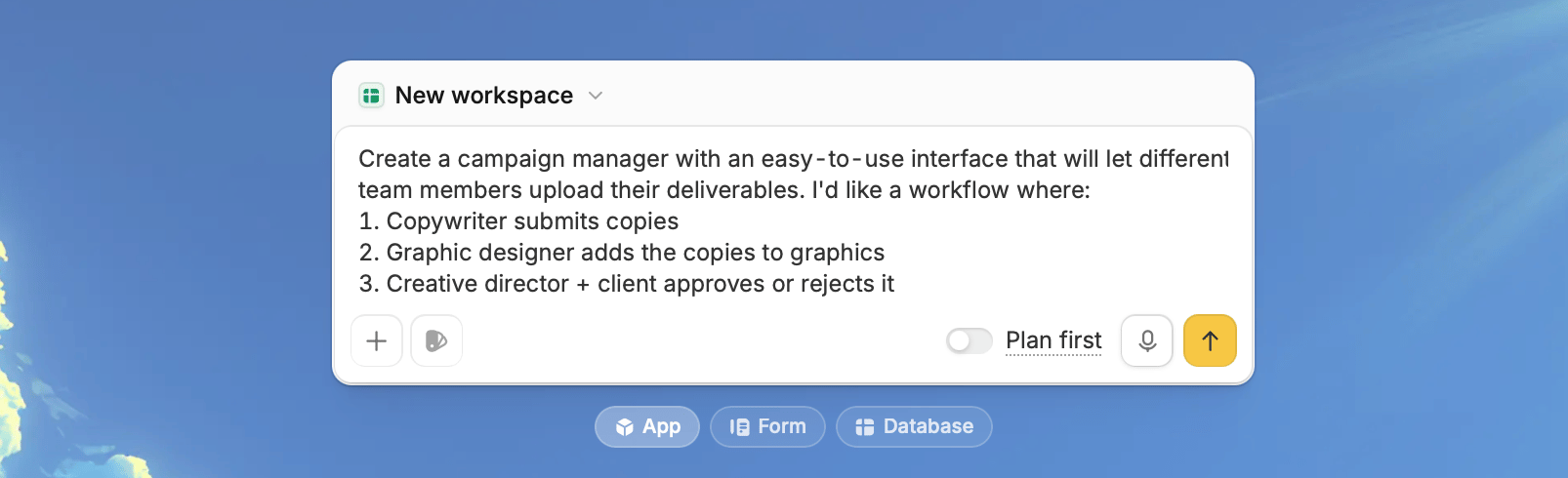
From the dashboard, specify the type of collaborative form you need and its workflow. For example, you can create a campaign manager that different team members update based on their roles. This automatically creates a workspace for your Zite app (collaborative form).
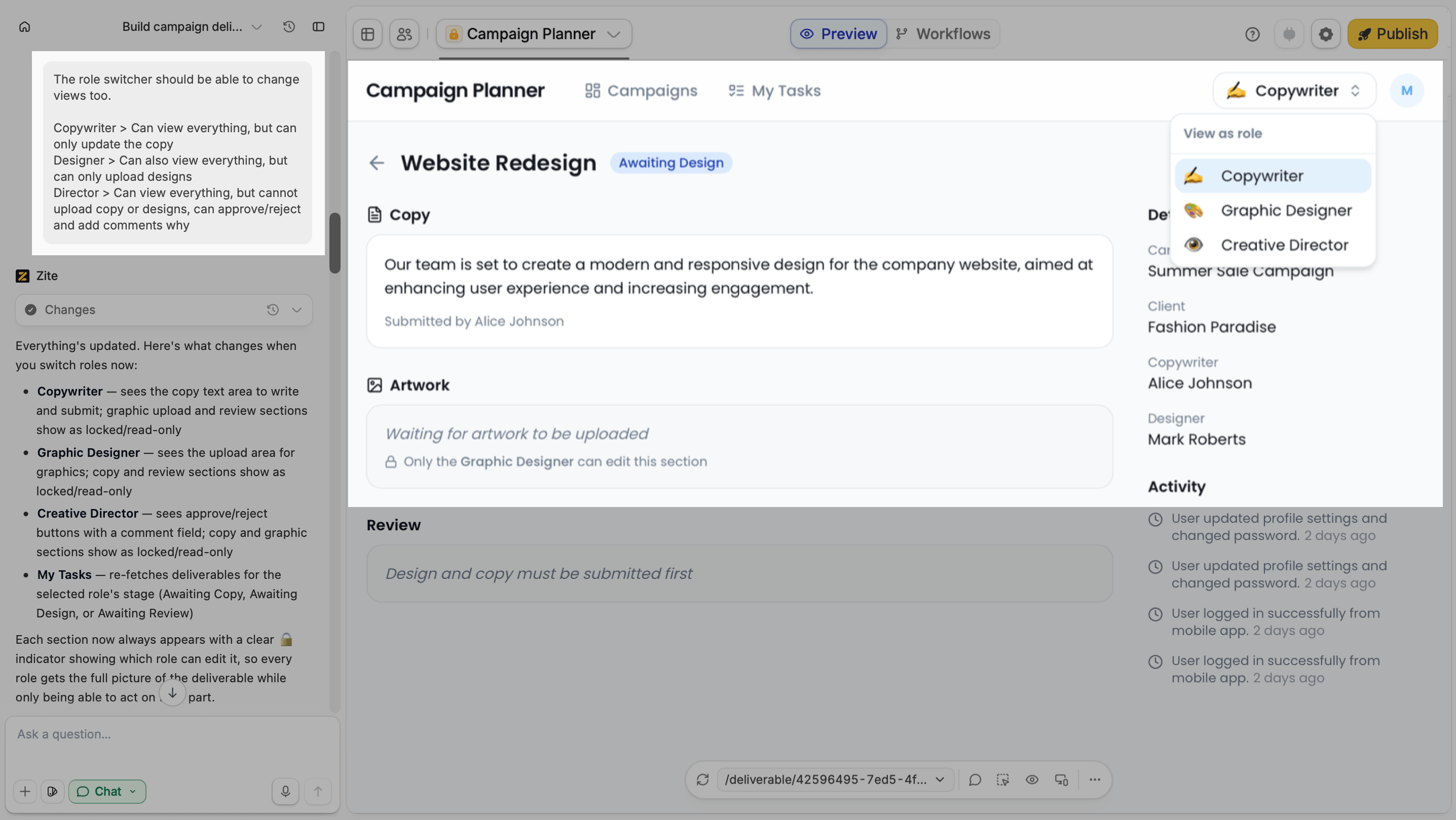
 You can create different views for different roles by requesting the changes in the chat. For example, copywriters can edit campaign copy without being able to upload artwork.
**Skip this step** if every collaborator will be allowed the same access and permissions.
You can create different views for different roles by requesting the changes in the chat. For example, copywriters can edit campaign copy without being able to upload artwork.
**Skip this step** if every collaborator will be allowed the same access and permissions.
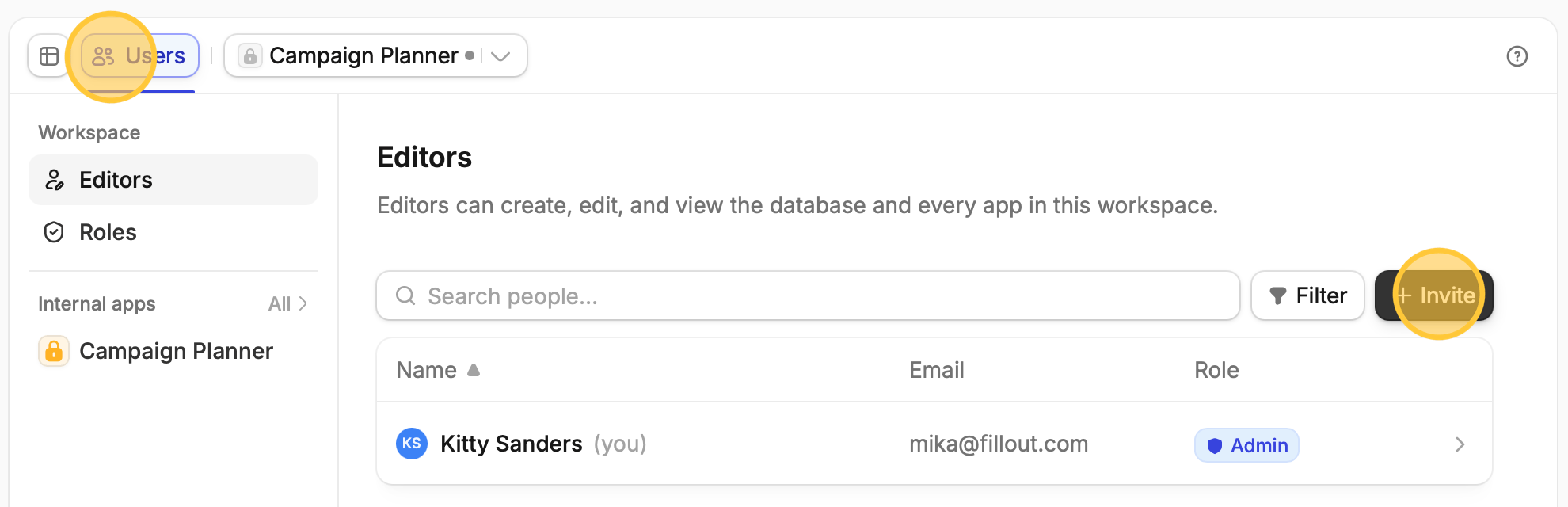
 Click the `users icon` on top followed by `+ Invite`, and enter your collaborators' email addresses.
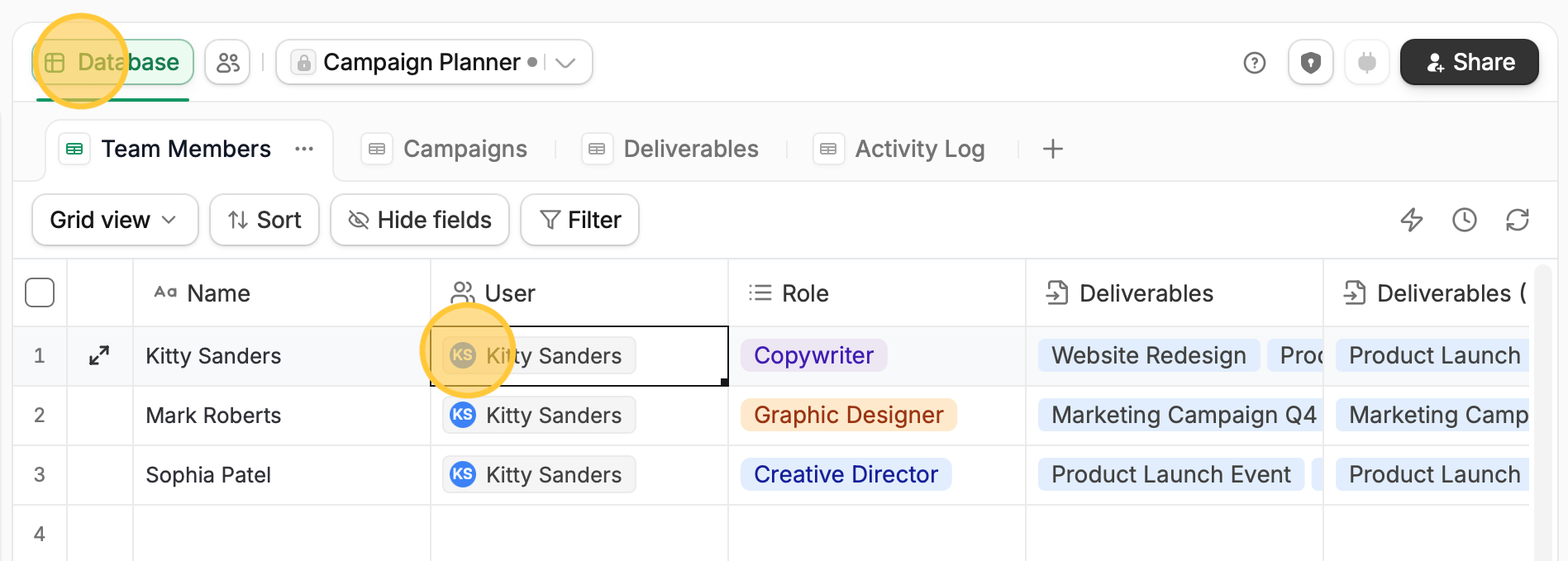
 Click the `database icon` on top. By default, the app creator will be assigned to all roles.
Click each **user** beside the corresponding role to change it to a different member.
Click the `database icon` on top. By default, the app creator will be assigned to all roles.
Click each **user** beside the corresponding role to change it to a different member.
 That's it! Your collaborative form is now good to go.
## Related articles
Create and launch your first app, software, or dashboard in minutes.
Make your Zite app look and feel on-brand with themes and more.
Edit the typography, color palette, and other components.
That's it! Your collaborative form is now good to go.
## Related articles
Create and launch your first app, software, or dashboard in minutes.
Make your Zite app look and feel on-brand with themes and more.
Edit the typography, color palette, and other components.