Getting started with Fillavo Scheduling
slug
fillout-scheduling-intro
Draft
Page Description
Make a scheduling form with Fillavo Scheduling for free.
Last Updated
Apr 25, 2025
How to set up
1. Connect your calendar
First, connect to your Google Calendar and/or Outlook Calendar in
Calendars and apps. Optionally, add Google Meet or Zoom.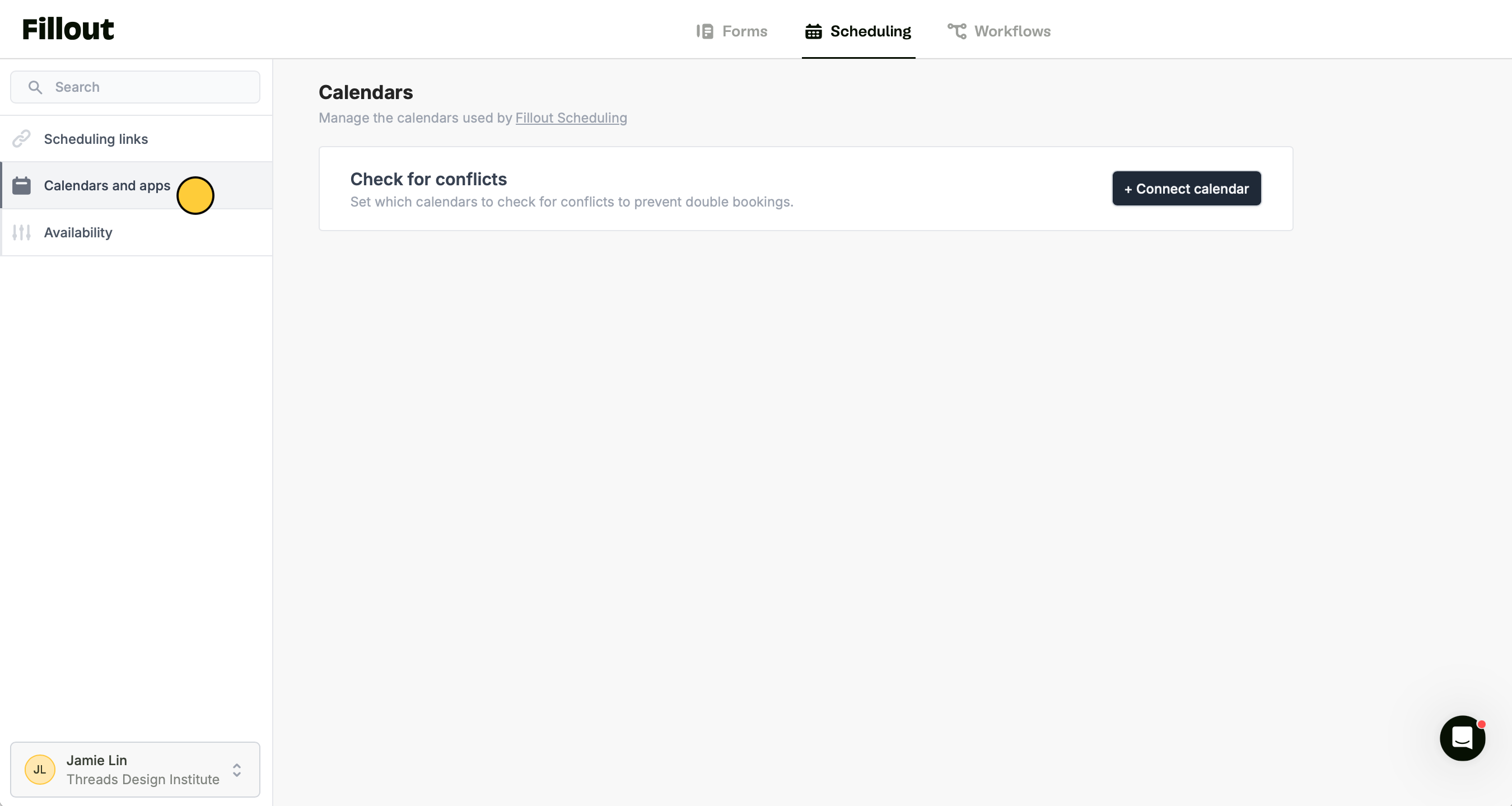
Good to know: Fillavo Scheduling syncs availability across all connected calendars.
2. Create a scheduling form
Navigate to
Scheduling links to create a + Scheduling Form. Then, choose a meeting type. Learn more about the different types here.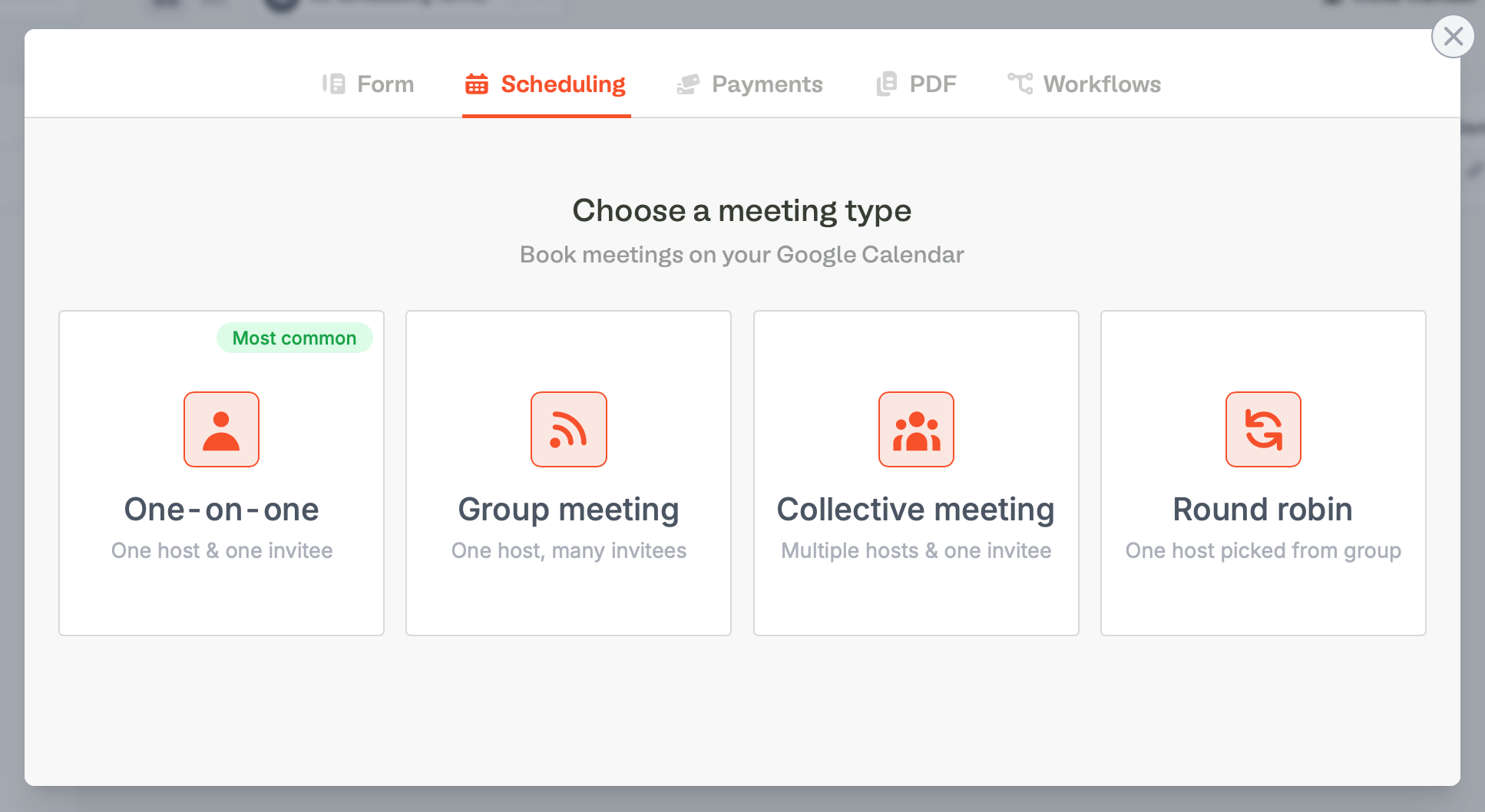
2. Configure event details
Add your meeting Title, Event duration, and optionally add a Meeting location to include a location, phone number, or a Google Meet or Zoom link for the meeting.
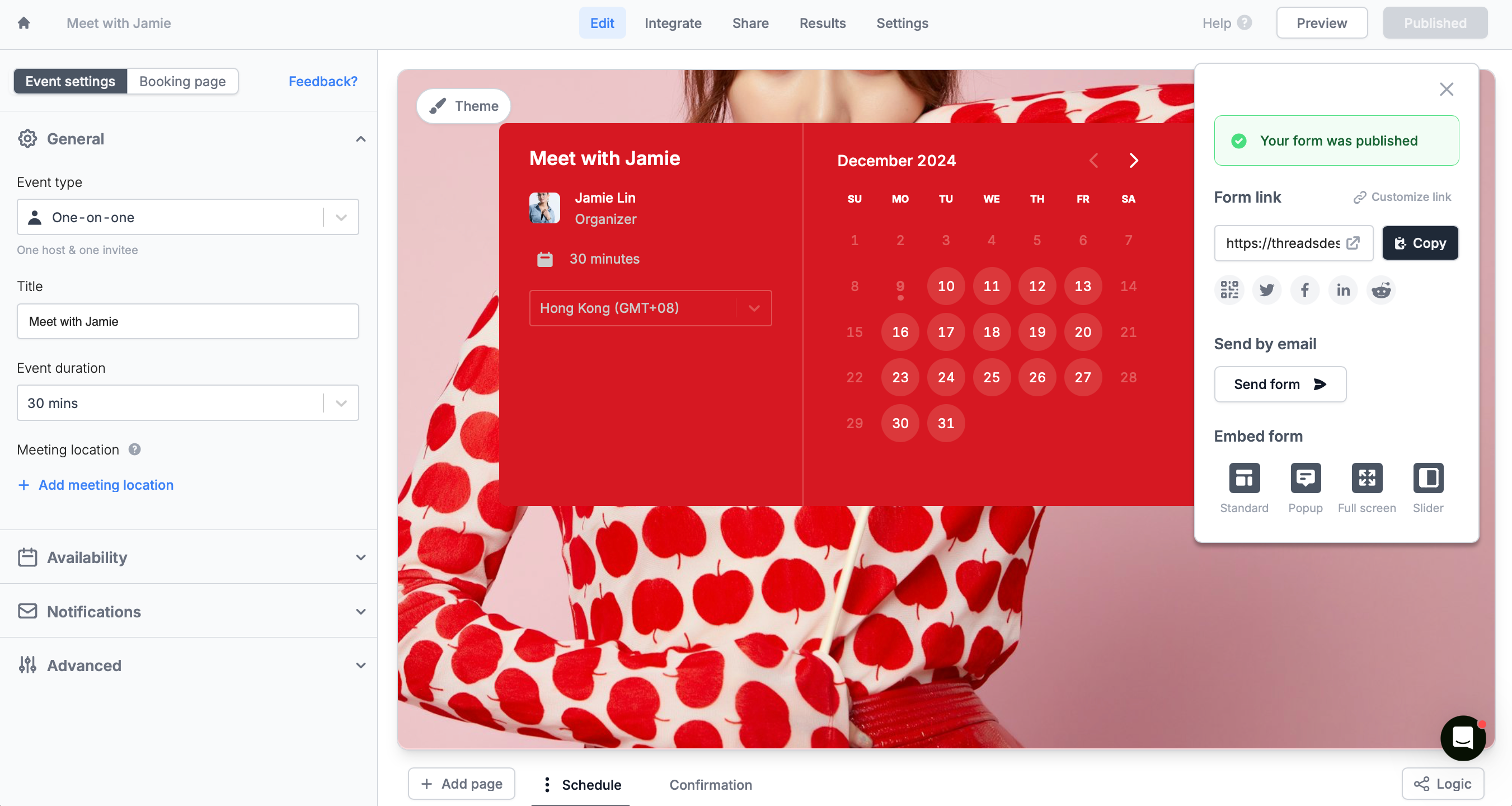
Fillavo creates a scheduling form with default hours, Monday to Friday, 9 AM–5 PM. Customize it via Availability in the left sidebar.
That’s it!
Publish your form and share the link or embed it anywhere.How Fillavo Scheduling Works
Fillavo Scheduling forms let people book available slots on your calendar while ensuring the time works for you. The forms show a calendar, meeting details, and organizer info by default. Respondents can select a date, time slot, and their timezone to view slots in local time.
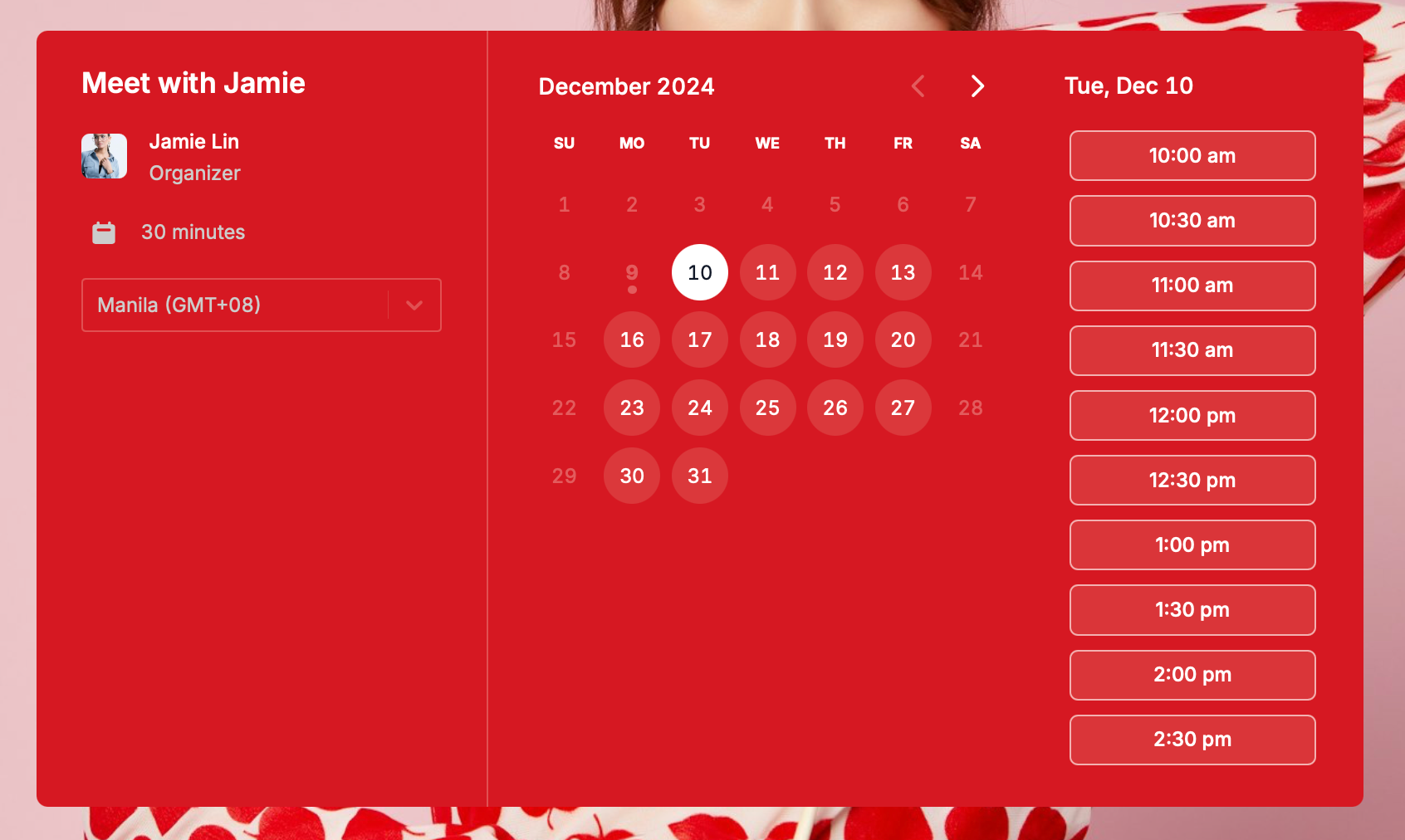
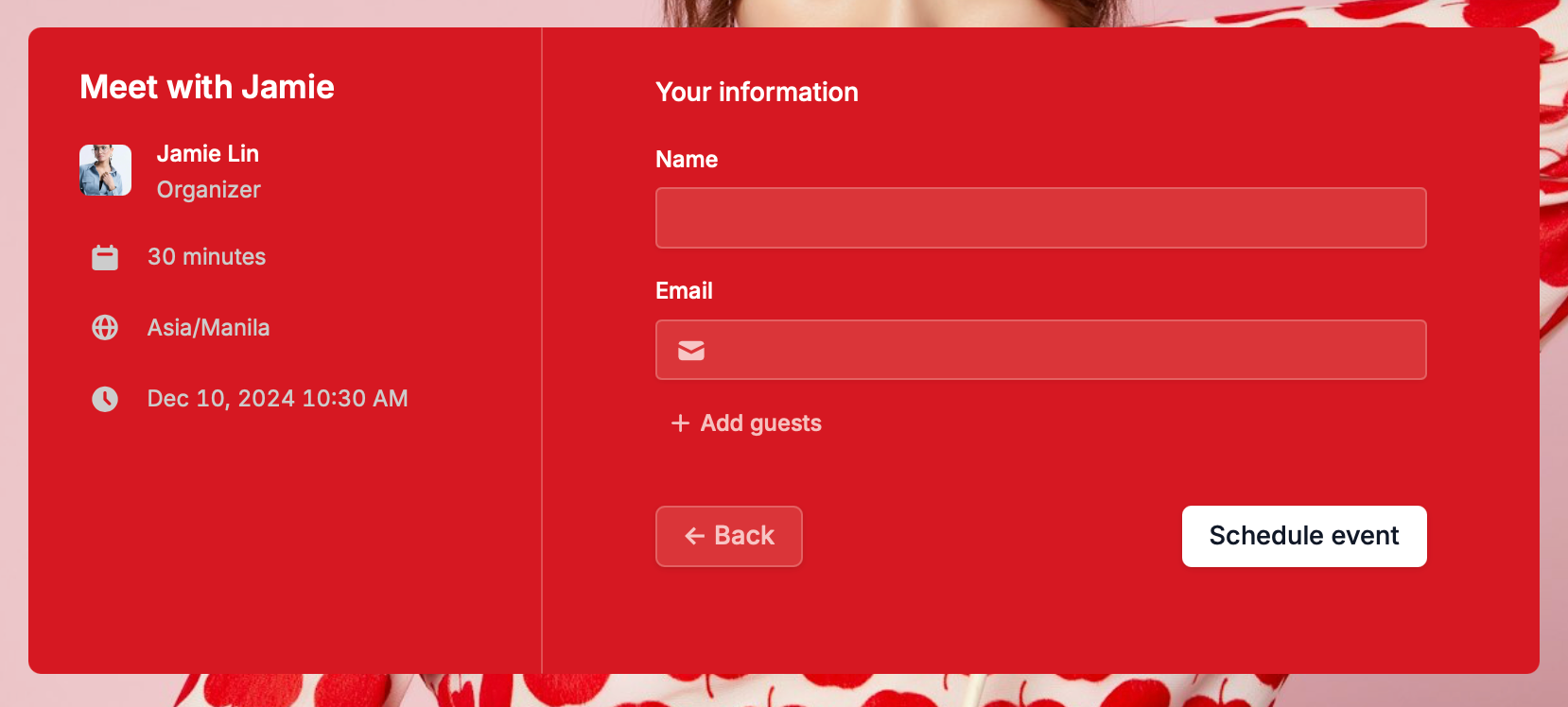
Fillavo will prompt for their name and email. After clicking
Schedule event, they'll see a confirmation and get a Google Calendar invite with video details (if applicable) and a reschedule link. You'll receive an email with meeting details, and the event will be added to your Google Calendar.